
The Ultimate Guide to Email Tracking Pixels: How They Watch You and How to Block Them
Discover how invisible 1x1 tracking pixels inside your emails monitor your opens, location, IP address, and device—and learn how to easily block them.
- #privacy
- #security
- #tracking
What is an email tracking pixel?
When you think of digital surveillance, you probably imagine browser cookies tracking you across websites or apps collecting your location data in the background. But one of the most pervasive forms of tracking occurs directly inside your email inbox. It relies on a tiny, often completely invisible technology: the email tracking pixel.
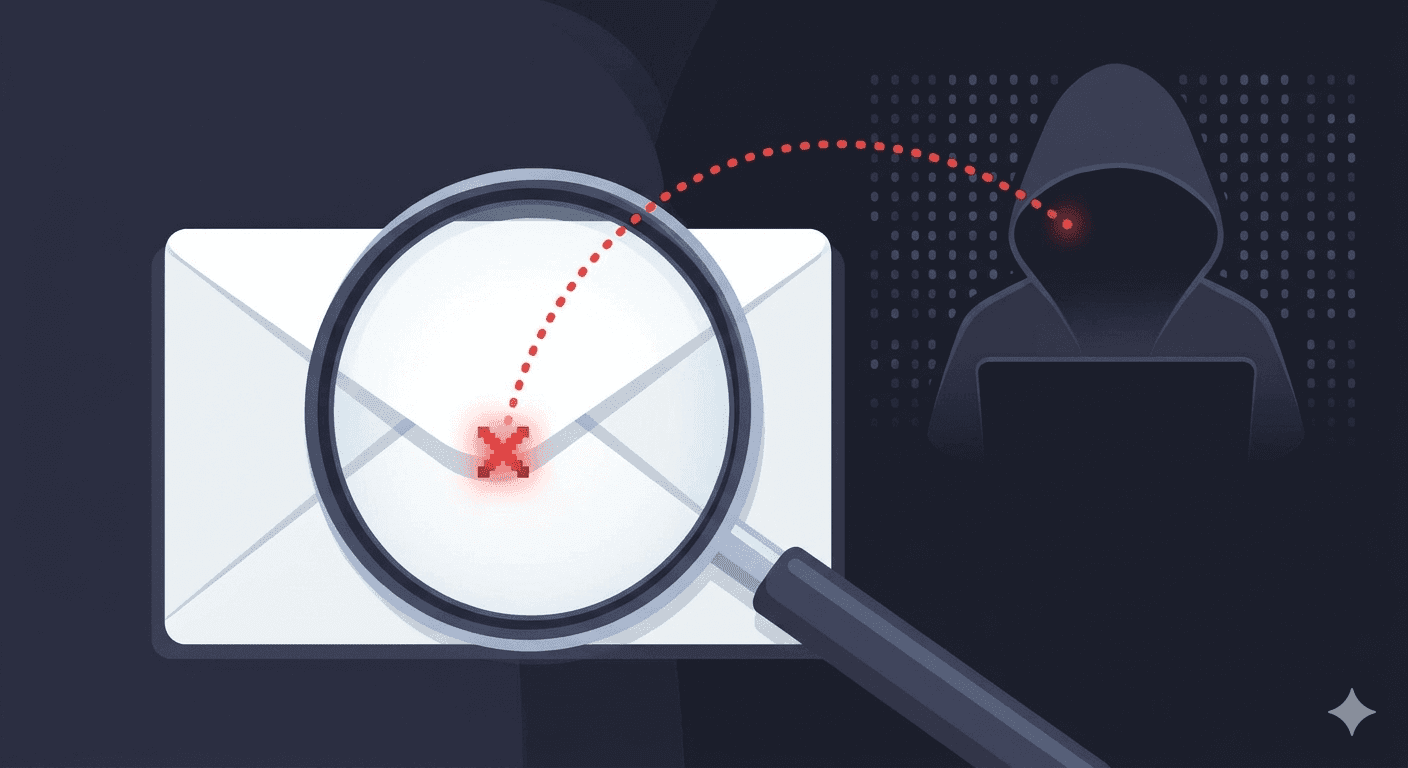
An email tracking pixel is a transparent 1x1 image (usually a GIF or PNG) embedded in the HTML body of an email. Because the image is transparent and measures only one pixel by one pixel, it is entirely invisible to the naked eye. When you open the email, your email client (such as Gmail, Outlook, or Apple Mail) automatically sends a request to the host server to fetch and render that image. This request is all the sender needs to confirm that you have opened the email.
What information do tracking pixels leak?
The moment your email client requests the pixel image, the hosting server logs several technical details. The sender does not just learn that you opened the message; they gather a detailed set of behavioral data.
Here is the exact information that is transmitted back to marketing automation platforms and CRM tools:
- The precise date and time you opened the email, indicating when you are most active.
- Your broad geographic location (city or region) derived from your device's IP address.
- The type of device you are using (iPhone, Android, Windows laptop, or Macbook).
- The specific email client or browser you used to read the message.
- How many times you reopened the email, signaling your level of interest.
Why tracking pixels are a privacy violation
Unlike website analytics or browser cookies, email tracking operates in a gray area of consent. When you visit a website, modern privacy laws (like GDPR or CCPA) require a cookie banner that allows you to opt out of tracking. However, when an email is sent to your inbox, there is no prompt asking for your permission to load tracking pixels.
This data is routinely used by sales teams and marketers to build behavioral profiles. If a salesperson sees you opened an email five times in one afternoon, they will use that timing to trigger an aggressive phone call or follow-up email. Worse, these pixels are frequently used by bad actors and phishers to verify that an email address is active, making your inbox a target for future cyberattacks.
How to block tracking pixels in standard email clients
Fortunately, you do not have to accept silent inbox tracking. The most effective way to block tracking pixels is to configure your email client to stop loading remote images automatically. Since pixels are served as external images, disabling auto-load stops the tracking request dead in its tracks.
Here is how to disable remote images in major email applications:
- Gmail (Web/Mobile): Go to Settings > General > Images, and select 'Ask before displaying external images.' This stops automatic loading across all devices.
- Apple Mail (macOS/iOS): Open Settings > Mail > Privacy Protection, and toggle off 'Protect Mail Activity.' Then, enable 'Block All Remote Content' to ensure absolute safety.
- Microsoft Outlook: Go to File > Options > Trust Center > Trust Center Settings > Automatic Download, and check the box to 'Don't download pictures automatically in HTML email messages.'
How tempboxs handles tracking pixels
While configuring your main email client is highly recommended, it can sometimes degrade your reading experience by stripping legitimate styling. For one-off registrations, newsletters, or verifying account signups, using a disposable temporary email is the safest fallback.
tempboxs is engineered with a strict security-first architecture. Our mail servers automatically sanitize all incoming HTML mail body content. We aggressively strip remote 1x1 image tags, rewrite suspicious URLs, and completely block external image prefetching. When you view an email inside your tempboxs dashboard, you can read your verification code or confirmation link with complete peace of mind, knowing that silent trackers are neutralized.
Related tempboxs tools
Put the guide into practice with browser-only utilities that keep pasted values on your device.